Plex DVR with the Official Xbox One Digital TV Tuner - The indirect approach
Plex DVR with the Official Xbox One Digital TV Tuner - Working!
Series: Plex DVR with the Official Xbox One Digital TV Tuner Part 3
- Plex DVR with the Official Xbox One Digital TV Tuner - Introduction
- Plex DVR with the Official Xbox One Digital TV Tuner - The direct approach
- Plex DVR with the Official Xbox One Digital TV Tuner - The indirect approach
- Plex DVR with the Official Xbox One Digital TV Tuner - The Direct (and working!) Approach
- Plex DVR on Docker with the Official Xbox One Digital TV Tuner
In part 2 of this series we tried, and failed, with the direct approach of passing the USB tuner straight through to the Plex Docker container and seeing if it would work anyway.
In this part, we will build a set up which does allow Plex to use the Xbox One Digital TV Tuner.
Nothing in this approach is new, but this does bring together the work of many projects.
Driver Support
While looking into if there had been any mention of support, and checking for word of Linux driver support, I came across a post in the Tvheadend forums. While this is a very old forum post (nearly 3 years old), it has had a recent flurry of activity in the last month with Olli Salonen working on a Linux driver that (hopefully) will be upstreamed towards the Linux kernel in the future.
So, no official driver support just now, but if we want to run a tainted kernel then we could at least get the device to appear in Tvheadend.
What is Tvheadend?
Tvheadend is a TV streaming server and recorder for Linux, FreeBSD and Android supporting DVB-S, DVB-S2, DVB-C, DVB-T, ATSC, ISDB-T, IPTV, SAT>IP and HDHomeRun as input sources.
Tvheadend offers the HTTP (VLC, MPlayer), HTSP (Kodi, Movian) and SAT>IP streaming.
Another DVR with Live TV - How does that help with Plex?
A little Google search for Tvheadend and Plex lead me to a post on Reddit on how to use Tvheadend to allow the use of any tuner with Plex. To do this, we need Plex to connect to a small Flask application called tvhProxy which acts as a bridge between the requests Plex makes to a IP based tuner and the API provided by Tvheadend.
Difficulties in passing a device to a VM in VirtualBox
As a quick test, before starting on the build of the new VM, I attempted to just attach the tuner device to an existing Ubuntu VM I had.
[dhutchison@procent ~]$ VBoxManage list usbhost
Host USB Devices:

<none>
Well that was not the start I was hoping to. Listing the host usb devices did work when running the command as root, but that is not ideal.
It turns out that this is actually covered in the installation documentation for VirtualBox on Linux. The step I appear to have missed, probably as everything except device passthrough appears to work with it, was adding my user to the “vboxusers” group.
sudo usermod -a -G vboxusers <username>
After this, stopping any VMs I had running, and logging out and back in, VirtualBox was able to see USB devices on the host again.
[dhutchison@procent ~]$ VBoxManage list usbhost
Host USB Devices:

UUID:               cbc06204-fa47-471e-8b0e-a231fd664805
VendorId:           0x045e (045E)
ProductId:          0x02d5 (02D5)
Revision:           1.16 (0116)
Port:               0
USB version/speed:  2/High
Manufacturer:       Microsoft Corp.
Product:            Xbox USB Tuner
SerialNumber:       001234567890
Address:            sysfs:/sys/devices/pci0000:00/0000:00:1a.0/usb1/1-1/1-1.1//device:/dev/vboxusb/001/010
Current State:      Available
Building a VM to run this
Initially I took the wrong approach as to how this bundle of services could be deployed, but that will be covered in detail in another part of this series. While not a final solution, for speed of getting up and running, I set up a Vagrant script for a VM in VirtualBox, using a bash script to configure it. Long term, this has some issues we would need to resolve - primarily that this will not start up as part of my server boot.
The choice to run this in a Virtual Machine was down to two main points:
- I run Centos 7 on my server, which has an older kernel version than is required for the new drivers we need to compile
- Building an experimental kernel extension to my host OS would not be a good idea if I want a stable system.
The Vagrantfile is as follows. Note that it is important we use a fixed IP address here.
# -*- mode: ruby -*-
# vi: set ft=ruby :

# Vagrantfile API/syntax version. Don't touch unless you know what you're doing!
VAGRANTFILE_API_VERSION = "2"

Vagrant.configure(VAGRANTFILE_API_VERSION) do |config|
config.vm.box = "ubuntu/xenial64"

config.vm.network "public_network", bridge: 'eno1', ip: "192.168.0.99"

# If using virtualbox, pass through our USB device
config.vm.provider "virtualbox" do |vb|
    vb.customize ["modifyvm", :id, "--usb", "on"]
    vb.customize ["modifyvm", :id, "--usbxhci", "on"]
    vb.customize ["usbfilter", "add", "0",
    "--target", :id,
    "--name", "MicrosoftUSB",
    "--serialnumber", "001234567890"]
end

# Disable the default share.
config.vm.synced_folder '.', '/vagrant', disabled: true

# Provision the VM using a shell script
config.vm.provision :shell, path: "Vagrant_bootstrap.sh"
end
The provisioning script is
#!/usr/bin/env bash

IP_ADDRESS=192.168.0.98
NORMAL_USER=test
NORMAL_USER_PASS=test

apt-get update
# Not strictly necessary, but nice to make sure up to date linux when provisioning.
apt-get upgrade -y

# Install Avahi for host name resolution
if [ $(dpkg-query -W -f='${Status}' avahi-daemon 2>/dev/null | grep -c "ok installed") -eq 0 ] ; then
  apt-get install -y avahi-daemon
  sed -i "s/#host-name=foo/host-name=tvheadend/g" /etc/avahi/avahi-daemon.conf
  update-rc.d avahi-daemon defaults
  service avahi-daemon start
else
  echo "avahi already installed"
fi

# Add the udev configuration file
if [ -f /etc/udev/rules.d/99-usb-tv.rules ]; then
  echo 'Udev already condifigured'
else
  echo 'ACTION=="add", ATTR{serial}=="007287190615", SYMLINK+="usbMicrosoftTV"' > /etc/udev/rules.d/99-usb-tv.rules
fi

# Grant firewall ports for tvheadend and the proxy
ufw allow 9981
ufw allow 9982
ufw allow 5004

# Install tvheadend
if [ $(dpkg-query -W -f='${Status}' tvheadend 2>/dev/null | grep -c "ok installed") -eq 0 ] ; then
  export DEBIAN_FRONTEND=noninteractive
  apt-key adv --keyserver hkp://keyserver.ubuntu.com:80 --recv-keys 379CE192D401AB61
  echo "deb https://dl.bintray.com/tvheadend/deb xenial release-4.2" > /etc/apt/sources.list.d/tvheadend.list
  apt-get update
  apt-get install -y tvheadend
  # Give us a default user
  sed -i 's/""/"admin"/g' /home/hts/.hts/tvheadend/superuser
  systemctl restart tvheadend
else
  echo "tvheadend already installed"
fi

# Install tvhProxy
if [ ! -f /etc/systemd/system/tvhProxy.service ] ; then
  # Install our required software
  apt-get install -y git gcc python-dev python musl-dev

  # Checkout the proxy source
  cd /opt
  git clone https://github.com/jkaberg/tvhProxy
  cd tvhProxy

  # Install the python modules required
  curl --silent https://bootstrap.pypa.io/get-pip.py -o get-pip.py
  /usr/bin/python get-pip.py
  pip install -r requirements.txt

  # Create the file with out environment variables
  cat > tvhProxy.env << EOF
TVH_URL=http://${NORMAL_USER}:${NORMAL_USER_PASS}@${IP_ADDRESS}:9981
TVH_PROXY_URL=http://${IP_ADDRESS}:5004
TVH_TUNER_COUNT=1
EOF


  # Update the paths in the service file to line up with our deployment
  sed -i "s|Environment=|EnvironmentFile=/opt/tvhProxy/tvhProxy.env|g" tvhProxy.service
  sed -i "s|/home/tvh/tvhProxy/venv/bin/python|/usr/bin/python|g" tvhProxy.service
  sed -i "s|/home/tvh/tvhProxy/|/opt/tvhProxy/|g" tvhProxy.service

  # Configure the service
  cp tvhProxy.service /etc/systemd/system/tvhProxy.service
  systemctl daemon-reload
  systemctl enable tvhProxy.service
  systemctl start tvhProxy.service
else
  echo "TVHProxy already installed"
fi

# Add additional firmware files
if [ ! -f /lib/firmware/dvb-usb-dib0700-1.20.fw ]; then
  wget https://linuxtv.org/downloads/firmware/dvb-usb-dib0700-1.20.fw -O /lib/firmware/dvb-usb-dib0700-1.20.fw
fi
if [ ! -f /lib/firmware/dvb-demod-mn88472-02.fw ]; then
  wget http://palosaari.fi/linux/v4l-dvb/firmware/MN88472/02/088b891ac9273ff8c6818fca27b24d81/dvb-demod-mn88472-02.fw -O /lib/firmware/dvb-demod-mn88472-02.fw
fi

# Build the required custom kernel module
if grep 'You are using an experimental version of the media stack' /var/log/syslog &>/dev/null ; then
  echo 'Custom module already installed'
else

  apt-get install -y git make gcc patchutils patch linux-headers-$(uname -r)
  mkdir -p /tmp/build
  cd /tmp/build
  git clone git://linuxtv.org/media_build.git
  # Need to reset back a bit
  cd media_build
  git reset --hard 9ccb87d51d2c525455022c0f31daee77938f31c1
  cd ../
  git clone --depth=1 https://github.com/trsqr/media_tree.git -b xboxone ./media
  cd media_build
  make dir DIR=../media
  make distclean
  make
  make install
  modprobe tda18250
  modprobe dvb-usb-dib0700
fi
Note that the custom kernel module build steps of this may take some time, depending on the resources available on the host.
Between when I first got this working, on the 6th of August, and writing this post, something broke. The patch from the second git repository stopped working, due to commits to the linuxtv repository. Originally we were checking out the head of the linuxtv media_build repository and working from there. This was changed to reset to a given commit.
Installation of Tvheadend through an interactive shell, as opposed to this provisioning script, would run some post-install steps to configure the admin user account for Tvheadend. This provision script sets this to default credentials.
Once the VM is provisioned, you can connect with a browser to http://192.168.0.98:9981. The default credentials are “admin/admin”.
Configuration of Tvheadend
After connecting to the web interface, and entering the default admin credentials, Tvheadend will take you through a wizard prompting for:
- Language information
- Security. Note you will need to use the same credentials for the user login as were in the “NORMAL_USER” and “NORMAL_USER_PASS” variables in the script (test/test). This is the account that the TVHProxy will use.
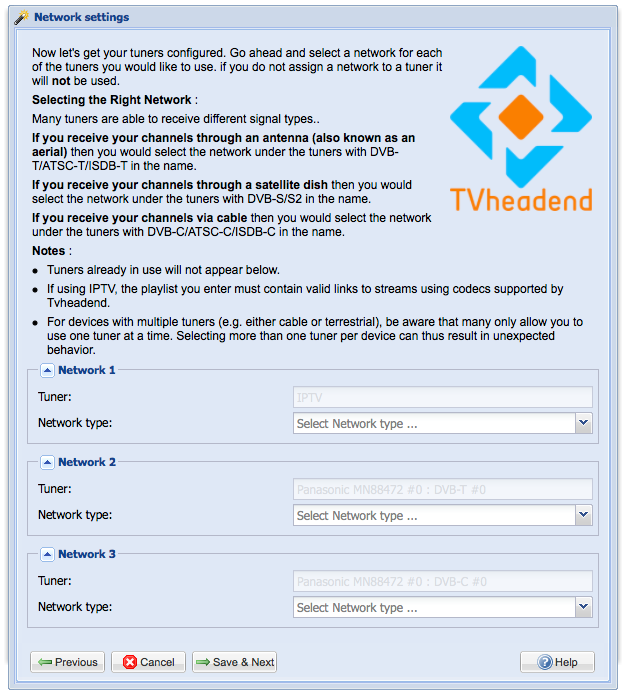
- The tuner configuration. If all has went well to this point, you should see something like the below. The Xbox tuner has identified as a Panasonic MN88472 (possibly just due to the driver in use). In my case, I can set Network 2 as “DVB-T Network”.
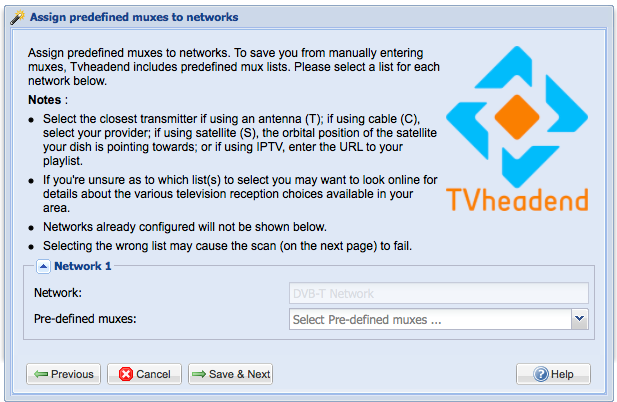
- The pre-defined mux to use. This relates to the TV transmitter available in the area you reside.
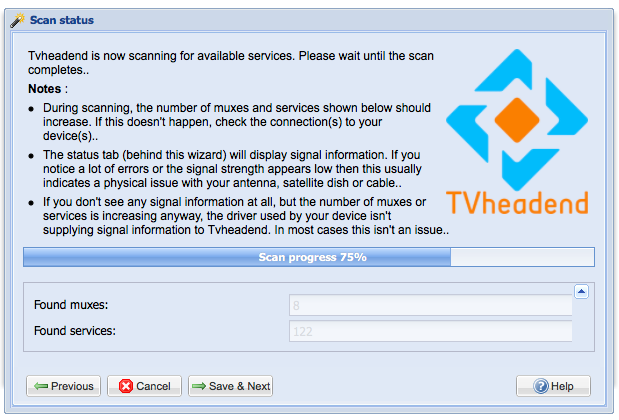
- This will scan for available channels.
- Once this completes, we have channels. I just ticked all the boxes, although some trimming of the channels made available was required to filter out some of the junk (for instance - shopping channels)
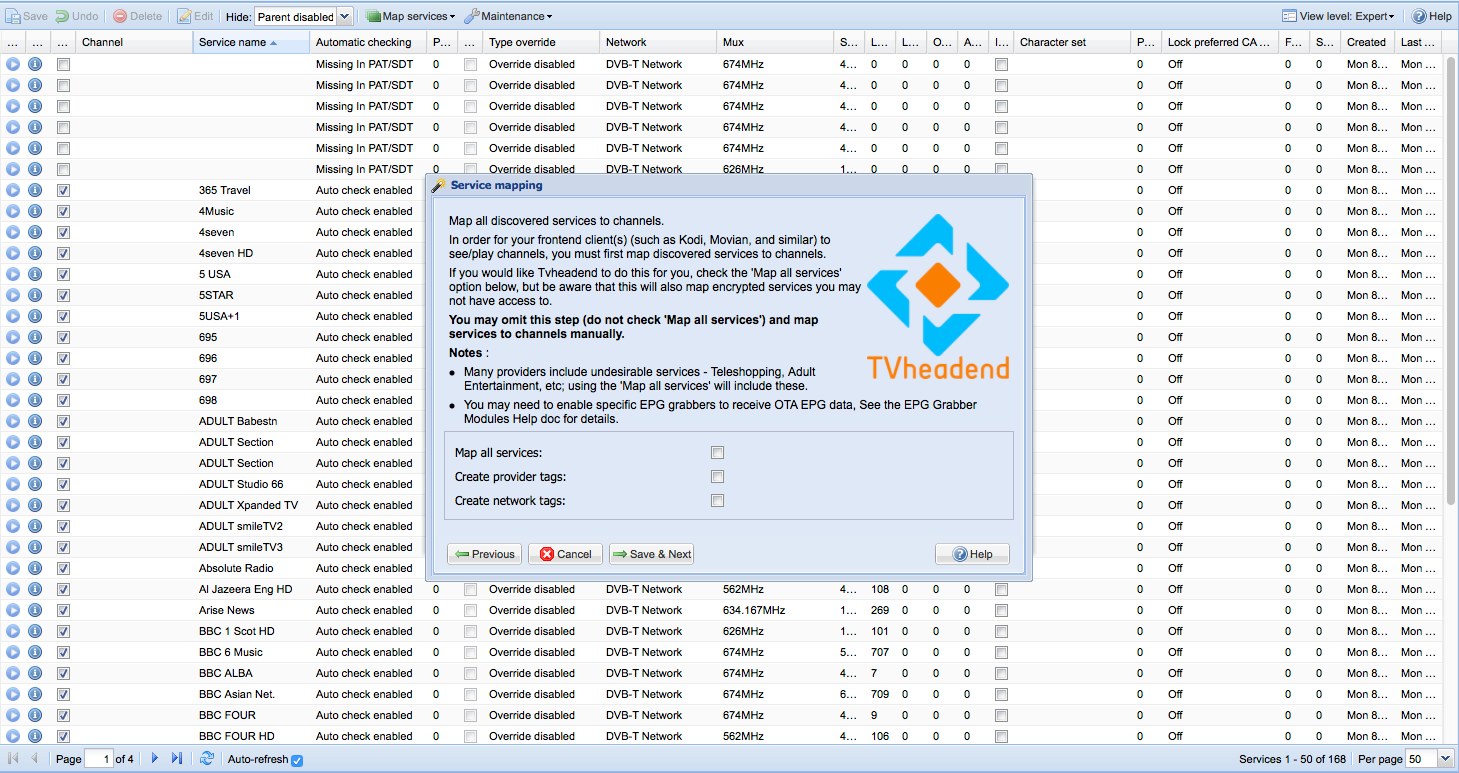
Completing this wizard, as noted in the dialog, removes the default admin account.
So after logging back in with our new admin credentials, we can go back to the Configuration tab, then select the “Channel/EPG” tab and disable some channels we do not want (remembering to press save after making any changes on a page!).
That is all the configuration required for Tvheadend. Our proxy service should be running, so we can connect Plex to the tuner.
Connecting Plex to Tvheadend
This is a relatively simple process.
- In the Plex web interface, navigate to Settings -> Server -> Live TV & DVR.
- Press “Set up Plex DVR” (or Add Device if you already have a tuner configured).
- Plex will not discover the tuner itself (not entirely sure what it is looking for), so click on the option to enter the address manually.
- Enter the IP address in the Vagrantfile you used, with the port 5004 and hit connect, then continue. Note that, while running Plex in Docker, the Avahi advertised host name cannot be used. If you are running Plex on the host directly you can use the host name.
- This will confirm the channels found (which should match any subset configured in Tvheadend), so press continue.
- For the configuration of the EPG, you have the option to enter a post code in order for Plex to find the EPG information itself. Alternatively you can select the XMLTV option and use (based on our configuration) “http://test:[email protected]:9981/xmltv” in order to let Tvheadend deal with the EPG retrieval. I found that letting Plex handle the EPG was much more reliable however (this may just be due to how I configured Tvheadend). In order to change the EPG source you need to remove the device and re-add it.
After completing this wizard, and waiting on the EPG to finish refreshing, you are ready to start watching live TV, or setting up DVR records (the features currently available vary across devices).
At the point of setting up a record, you are prompted to select the library to store to. In my case I created a “DVR TV” and “DVR Movies” library for my recordings as I keep my main media libray mounted read only to the docker container.
Other Issues?
When revisiting the Live TV & DVR configuration section, I commonly see the below error message.
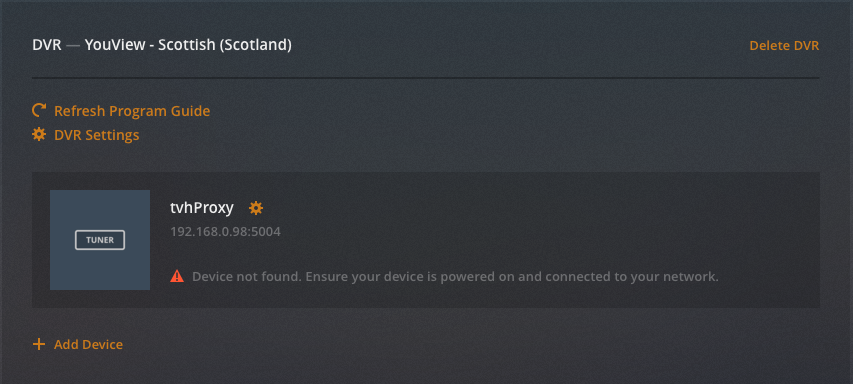
I have no idea why this appears - the logs for the TvhProxy do not indicate any requests which are not being responded to, so I can only assume the JSON being returned by the proxy is missing a bit of information Plex requires.
In Summary
This setup works, although it is not as tidy as I would like, as it:
- has experimental kernel modules
- is running in VirtualBox, so will not start backup if the server is restarted
- has a provisioning script that can fail part way through without clearly notifying of the issues